



MySDMC SSO Login: Fast Access to Manatee Schools Apps, Grades, and Learning Tools
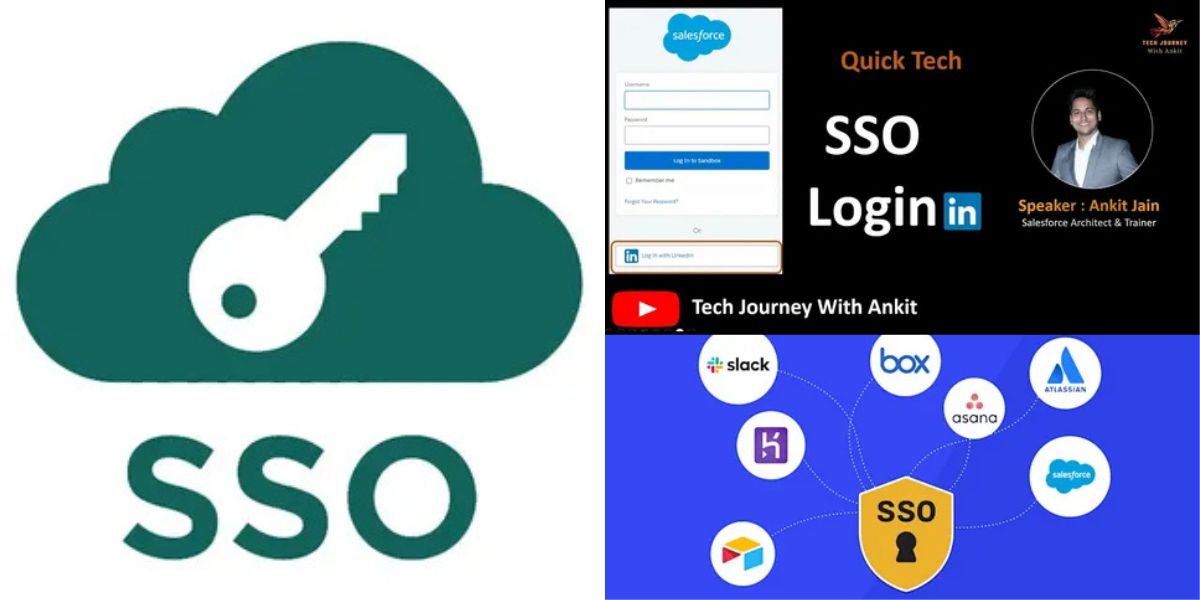
MySDMC SSO login: If you’ve ever watched a class lose five minutes to “I can’t log in,” you already understand why identity and access matters in K–12. MySDMC SSO exists to shrink that friction into a predictable, repeatable routine: one sign-in that routes students and staff into the tools they use every day, without juggling a new password for every app.
This guide breaks the portal down the way a district IT team, a classroom teacher, and a family member actually experience it: what it is, what it connects to, why it fails, and how to keep it secure without making it feel like a security obstacle course.
What the Portal Is and Why It Matters in Real Classrooms
At its core, MySDMC SSO is the district’s front door to digital learning resources—an identity “hub” that lets the district publish approved apps in one place and manage sign-in centrally, instead of forcing users to authenticate separately to every vendor. The School District of Manatee County promotes it directly from the district website as a primary link alongside other everyday services, which signals MySDMC intended to be the default starting point for students and staff.
The operational payoff is bigger than convenience. When a district centralizes access through a single sign-on experience, it can standardize onboarding and offboarding, reduce help-desk load from repetitive password resets, and keep app access aligned to role (student, teacher, staff) and enrollment changes. In practice, this is how you turn “edtech sprawl” into a coherent ecosystem: fewer dead links, fewer shadow accounts, and fewer learning interruptions when a vendor changes MySDMC login flow mid-semester.
Where Users Actually Enter the System and What They See
Most people don’t search for identity platforms—they click what’s in front of them. In Manatee County, the district’s homepage surfaces the MySDMC SSO link prominently, and that link routes into the ClassLink-hosted launch page that displays the district-branded sign-in experience.
On that launch page, users see a straightforward sign-in prompt plus supporting options that matter in schools: a “forgot password” path, a QuickCard sign-in option designed for fast authentication (often used with younger students), and a built-in browser check link to reduce device-compatibility guessing. When you design for schools, these are not “nice to have” extras—they’re the difference between a calm first five minutes of class and a cascading log-in pileup.
What You Can Access After Login and Why the Tile Model Works
A school MySDMC SSO portal succeeds or fails based on what happens after authentication. A good experience is not “you logged in,”MySDMC but “you landed in a curated workspace where the next click is obvious.” ClassLink positions LaunchPad as a single sign-on portal built for education, emphasizing broad app connectivity and the ability to provide a personalized portal of digital resources.
That “tile model” matters because it matches how schools operate. Teachers need a stable set of instructional tools, students need consistent access patterns, and IT needs a distribution layer that can add or remove tools without re-training everyone every time. When the portal is used as the consistent launch point, it becomes the district’s de facto navigation system for digital learning—less hunting, fewer bookmarks, and less dependence on “that one link in last week’s email.”
How Single Sign-On Works Without the Jargon Dump
Single sign-on can sound mysterious, but the simplest mental model is “trust.” The portal verifies who you are once, then passes that proof to connected applications so they don’t each have to ask you again. In enterprise terms, this is identity brokering; in classroom terms, it’s the difference between “log in to five apps” and “log in once, then learn.”
This approach is widely recognized as a way to reduce repeated authentication friction. NIST’s digital identity guidance explicitly frames the goal as minimizing user burden and notes MySDMC SSO is an example of that minimization strategy.
Sign-In Options, QuickCard, and the Most Common User Paths
Most districts end up supporting multiple sign-in methods because “one size fits all” isn’t realistic across grade levels, devices, and home connectivity. The Manatee-branded launch page offers a standard sign-in route and a QuickCard option, which is typically used for speed and accessibility in student-heavy environments where typing credentials is a known bottleneck.
MySDMC SSO also includes a dedicated password-reset entry point right on the login experience, which is important because it localizes the recovery workflow where users already are. Notably, the reset flow itself emphasizes security by stating that reset actions are logged and that the account owner is notified of the request—an approach that helps deter abuse while still keeping recovery practical for legitimate users.
| Sign-in approach | When it’s most effective | What the user needs | Typical failure mode | Fast, school-friendly fix |
|---|---|---|---|---|
| Standard username/password | Staff and older students, especially on personal devices | District-issued credentials | Wrong password, caps lock, stale autofill | Use the portal’s reset flow and re-type credentials manually before saving new autofill |
| QuickCard (camera-based) | Younger students, shared devices, fast classroom transitions | A working camera and the student’s issued QuickCard | Camera blocked/disabled, low light, permissions denied | Allow camera permissions, improve lighting, switch devices or browsers if camera is restricted |
| Password reset via portal link | When the account is valid but the password is unknown/expired | Username and access to the recovery channel the district has configured | User can’t complete recovery due to missing contact method | Escalate to school support/help desk rather than repeated resets that trigger lockouts |
| Browser compatibility checks | First-time logins, odd device behavior, home networks | A supported browser with standard settings | Scripts blocked, cookies disabled | Enable JavaScript and cookies; retest with the portal’s browser check before troubleshooting apps |
| District-managed device “smooth login” patterns | School-issued devices with managed profiles | Managed device configuration | Profile sync issues, cached sessions | Sign out completely, restart device, re-authenticate once to refresh the session |
Browser and Device Readiness That Prevents “It Doesn’t Work”
A huge share of MySDMC SSO “outages” aren’t outages at all—they’re browser constraints. Even Microsoft-based district sign-in pages commonly warn that JavaScript must be enabled for the authentication flow to run, which means script blockers, strict privacy modes, or locked-down browsers can break login before the user even reaches the portal tiles.

The simplest preventive discipline is consistency: pick a primary browser for school use, keep it updated, and avoid stacking extensions that rewrite pages (ad blockers, privacy plugins, script disablers) on top of district login systems. The portal’s built-in browser check is there for a reason: it turns “try random things” into a measurable checklist and is often faster than escalating to support for basic compatibility problems.
The Most Common Login Errors and What They Usually Mean
When a user says “it won’t let me in,” you need to translate symptoms into categories. If the login page loads but never completes sign-in, you’re often looking at blocked scripts, third-party cookie issues, or a captive portal at a public Wi-Fi network. If the page completes login but the dashboard is empty or missing apps, it’s usually a role/roster sync issue rather than an authentication problem.
The key is to troubleshoot in layers. First confirm the user can access the portal page and complete authentication; then confirm the session persists (no immediate sign-out loops); then validate that apps launch cleanly. This sequence mirrors how MySDMC SSO is built: identity first, session second, app connections third. Trying to debug the app connection before the session is stable wastes time and makes the issue look “random” when it’s actually deterministic.
Password Resets, Account Recovery, and When to Stop Clicking
A password reset link is a powerful tool, but it’s also easy to overuse. The portal’s reset workflow is designed to be the front-line recovery option—simple enough for a user, formal enough for audit and notification. That notification element matters because it creates accountability: if a reset is triggered unexpectedly, the rightful user has a chance to flag it quickly.
The practical rule schools should teach is escalation discipline. If a user has tried a reset once and still can’t authenticate, repeating the same action rarely fixes the underlying cause and can trigger lockouts, delays, or extra verification steps. At that point, the fastest path is usually school-based support, because many “login failures” are actually account state issues: disabled accounts, incorrect usernames, mismatched enrollments, or stale directory syncs that the user cannot self-correct.
Security Posture Without Turning School Into a Fortress
MySDMC SSO is often misunderstood as “less secure because it’s one password.” In reality, it can be more secure when implemented well, because the district can enforce consistent controls at the identity layer instead of hoping every vendor’s login is equally strong. ClassLink’s LaunchPad product framing leans into that point by explicitly emphasizing “Single Sign-On with MFA” and positioning multi-factor authentication as a way to protect sensitive data while maintaining fast access.
A useful way to communicate this to non-technical audiences is to borrow the customer-experience framing from NIST: reduce authentication friction while keeping assurance appropriate. As NIST puts it, “Single sign-on (MySDMC SSO) exemplifies one such minimization strategy.” That’s the balance schools need: fewer logins to reduce risky behavior, paired with stronger protections at the point that matters most—the identity gateway.
Teacher Workflow: Turning Login Into a 30-Second Routine
In a strong implementation, the portal is not an “IT thing,” it’s a classroom habit. Teachers who treat login like a predictable bell-ringer—device open, portal launch, target app—reduce downtime and help students build procedural fluency. When the workflow is stable, you also get cleaner behavior data: if a student can reliably reach the tools, engagement becomes measurable, not confounded by access failures.
This is where MySDMC SSO can become more than a convenience and start acting like infrastructure. With a consistent launch point, teachers can spend less time distributing links and more time focusing on learning tasks. The portal becomes the default “map” for the day’s digital materials, and students learn that “start here” is non-negotiable—an expectation that quietly improves cybersecurity too, because it reduces the urge to Google random login pages.
IT and Administration: Governance, Analytics, and License Efficiency
From an enterprise content strategy perspective, the portal is also a governance layer. ClassLink emphasizes that LaunchPad sits inside a broader education identity ecosystem with large-scale app connectivity and features beyond simple login, including analytics and resource organization.
That matters because school districts don’t just buy tools; they manage portfolios. When access is centralized, districts can rationalize what they pay for versus what is used, align access to policy, and reduce the risk of “unknown apps” collecting student data outside approved channels. The portal also becomes a clean handoff between policy and practice: when a tool is approved, it appears; when it’s retired, it disappears—without requiring every teacher to update bookmarks and every student to remember a new URL.
Data Privacy and the “Least Surprise” Principle for Families
Families don’t want identity theory—they want predictable visibility into student progress and communications. In Manatee County, the broader digital ecosystem includes family-facing tools like the district’s Focus-related mobile app, which is positioned as a way to receive real-time notifications for grades, attendance, assignments, and test scores, plus quick access to school links and updates.

This is where you should be explicit about boundaries. The MySDMC SSO portal is typically designed for students and staff workflows, while family access often runs through separate parent portals or dedicated apps. Explaining that separation clearly reduces confusion and prevents risky behavior like sharing student credentials “just so a parent can check something.” The safest district is the one where the easiest path is also the correct path.
Equity, Access at Home, and Designing for the Real Internet
A modern district has to assume students will authenticate from a variety of networks: fast home broadband, mobile hotspots, public Wi-Fi, and sometimes unstable connections that drop mid-session. Good MySDMC SSO design helps here because it reduces the number of sign-ins required; fewer authentication steps means fewer chances for a connection hiccup to derail access.
Schools can also reduce equity gaps by standardizing a lightweight “home login checklist” that doesn’t demand technical expertise: use a modern browser, avoid private browsing for school sessions, allow required permissions for tools like camera-based QuickCard sign-in, and keep the portal as the first click rather than relying on search results. This is less about tech and more about cognitive load—removing avoidable decision points so students can spend their bandwidth on learning.
A Practical Troubleshooting Playbook for Support Teams and Power Users
In every district, a small group of people become informal tier-1 support: media specialists, tech-savvy teachers, front office staff, and the student who “knows computers.” The best playbook for that group is diagnostic, not procedural. Instead of “click this, then that,” the playbook asks: is it an authentication issue, a session issue, or an app-connection issue?
Use the portal’s built-in help signals to anchor the process: start at the district-branded login page, confirm the user can reach the reset and QuickCard options, validate browser readiness, then only after that test specific app tiles. When the process is consistent, escalations become higher quality: support tickets include what was tried, what the user saw, and where the failure occurs. That shortens resolution time and reduces the “it worked yesterday” mystery that burns support capacity.
Future-Proofing Identity in K–12: MFA, Passkeys, and Smarter Login Options
The identity landscape in education is moving fast, driven by both security threats and usability expectations. Vendors increasingly emphasize MFA and even passwordless options because districts need stronger protection without adding daily friction. ClassLink’s LaunchPad product messaging highlights MFA directly and also references passwordless authentication with passkeys as part of its security feature set.
For districts, the strategy is to treat identity as a long-term platform decision, not a one-year project. That means investing in consistent training, reducing credential-sharing incentives, and designing authentication flows that match age levels and contexts. When done right, you get a rare outcome in K–12 tech: a system that is simultaneously more secure and easier to use, because it removes the chaos of scattered logins and replaces it with one reliable entry point.
Conclusion: Making the Portal Feel Invisible—in the Best Way
When MySDMC SSO is working well, it barely feels like a system at all. It feels like a habit: open device, sign in once, launch what you need, learn. That “invisible infrastructure” effect is the real objective, and it’s why districts surface the portal as a top-level link and invest in multiple sign-in options like QuickCard and password recovery directly on the login page.
The districts that get the most value from single sign-on treat it as both an access tool and a culture tool. They teach a consistent launch routine, they train users on basic browser readiness, and they reinforce security norms that reduce risky workarounds. Do that, and the portal stops being a daily obstacle and becomes what it was meant to be: the fastest path from “class started” to “learning happened.”
FAQs
Is MySDMC SSO the official place to start for student and staff digital apps?
Yes—MySDMC SSO is presented as a primary access link from the School District of Manatee County website and routes into the district-branded ClassLink launch experience, which is designed to be the default entry point for district resources.
What is QuickCard sign-in and who should use it?
QuickCard is a camera-based sign-in option available on the district’s launch page, typically used to help students authenticate quickly without typing long credentials—especially helpful in elementary settings or shared-device classrooms.
What should I do if the portal says JavaScript is required or the page won’t load correctly?
That message usually indicates a browser setting or extension is blocking scripts that the login flow needs; enabling JavaScript, reducing restrictive extensions, or switching to a modern supported browser is often the quickest fix before escalating.
How does the password reset process work, and is it secure?
The reset flow is initiated from the portal’s “forgot password” option and explicitly states that reset actions are logged and that the account owner is notified—controls that help keep recovery usable while discouraging misuse.
Do parents use MySDMC SSO to check grades and attendance?
In many districts, parent access is handled through separate family-facing tools; in Manatee County, the MySDMC Focus mobile app is positioned for family engagement with notifications for grades, attendance, assignments, and related school updates rather than requiring shared student credentials.
Does single sign-on reduce security because everything depends on one login?
Not necessarily MySDMC SSO can improve security when paired with stronger protections at the identity layer, and ClassLink specifically emphasizes “Single Sign-On with MFA” as a way to strengthen security while keeping access fast.
How often should students and staff sign out?
A good rule is to sign out on shared devices and at the end of the school day, especially if multiple users rotate through the same machine; the goal is to avoid accidental account crossover while keeping daily access smooth for legitimate users.